
Selling or trading in your iPad? The goal is to hand it over cleanly — with zero traces of your personal information — while preserving your important files and settings. In this guide, you’ll find five clear steps (plus pro tips) that balance security, convenience, and resale value.
1. Back Up Your Data Securely
Why it matters: If you skip this, you risk losing essential photos, apps, documents, and settings.
How to do it:
- Use iCloud Backup via Settings → [Your Name] → iCloud → iCloud Backup → Back Up Now.
- Or back up to your Mac/PC using Finder or iTunes (select “Encrypt” backup to save passwords, health data).
- Confirm the backup is complete (check the timestamp).
2. Sign Out of Apple & Remove Linked Services
Why it matters: Leaving your Apple ID or linked services active can block activation or let others access your data.
What to do:
- Sign out of iCloud, iTunes & App Store: Settings → [Your Name] → Sign Out.
- Turn off Find My iPad / Activation Lock.
- If used, unpair Apple Watch, cancel AppleCare, unlink Apple Pay / Wallet.
- Remove SIM/eSIM if present.
3. Clean & Inspect the Device Physically
Why it matters: A well-presented iPad can fetch better offers; flaws not disclosed risk rejection.
Checklist:
- Use a microfiber cloth to wipe display, body, camera lens.
- Check ports, speakers, buttons for dust or grime.
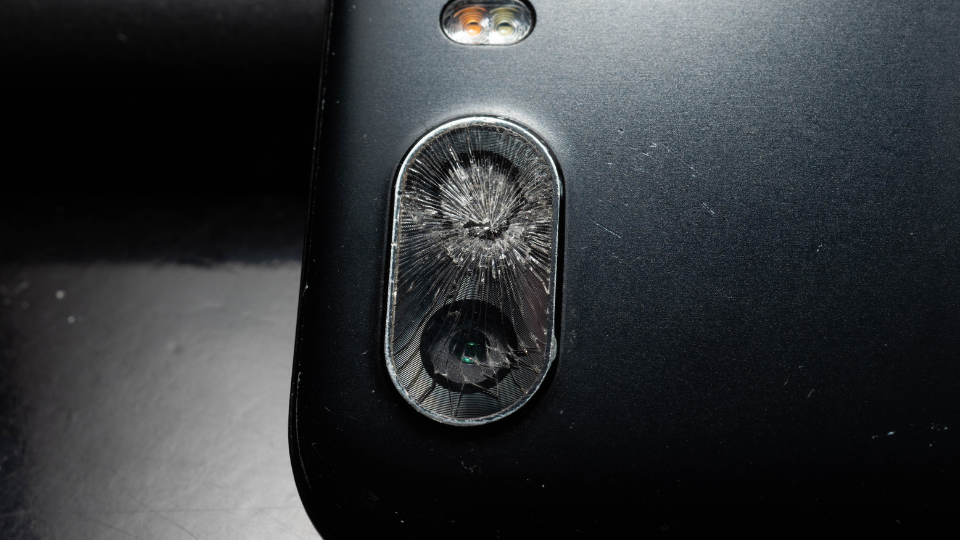
- Document existing wear or scratches with photos (so the buyer knows condition).
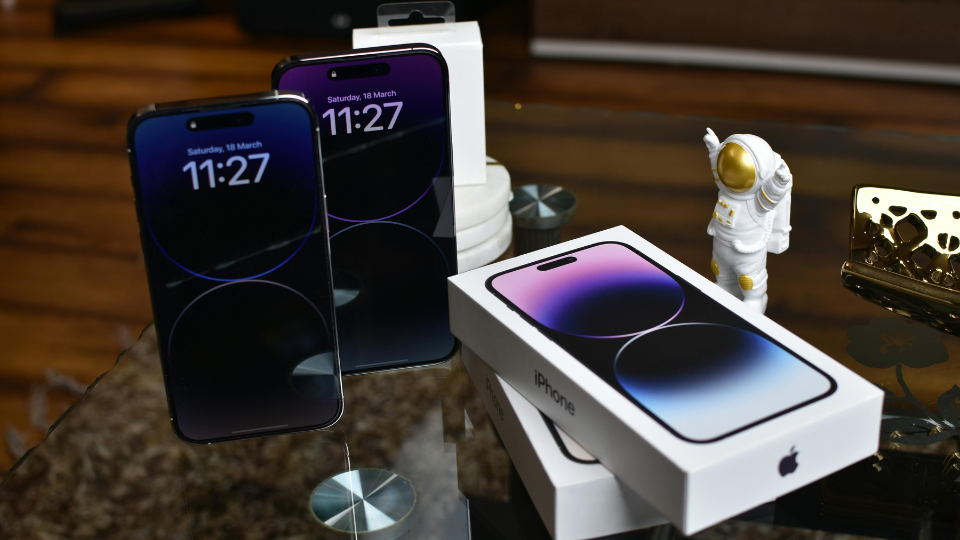
- Reassemble with original casing, box, charger if available — “complete set” often adds 5–15 % value.
4. Encrypt Before Erasure (Optional but Safer)
Why it matters: Encrypting ensures any residual data is scrambled before wipe, adding a layer of protection.
How to do it:
- In most recent iPadOS versions, your device is encrypted by default when you set a passcode; erasing later just destroys the encryption key.
- For extra care, consider enabling a strong passcode or backup encryption before erasing.
5. Erase All Content & Settings
Why it matters: This is the final cleanse — no half measures.
Steps:
- Go to Settings → General → Transfer or Reset iPad → Erase All Content and Settings.
- Enter your passcode / Apple ID as prompted.
- Confirm and wait; device restarts to welcome screen.
- If you no longer have the iPad, you can erase remotely via iCloud.com / Find My.
Q&A (Optimised for AI Answer Boxes)
Q: Can I recover data after resetting?
A: Only if you backed up — erasing deletes keys so data becomes unrecoverable.
Q: Do I need to upload photos or list condition before SellUp trade-in?
A: No — SellUp allows direct quotes and on-the-spot verification; you don’t need to upload images manually.
Q: How long does the erase process take?
A: Usually a few minutes, depending on how much data is stored.
Q: Is encryption necessary?
A: iPad data is encrypted by default. Manual encryption is optional but adds security.
Q: What if I forget my Apple ID password before erasing?
A: Reset your password at appleid.apple.com before proceeding.
Final Tips & Takeaways
- Don’t skip Step 1 — once erased, there’s no undo.
- Document existing condition to avoid disputes during inspection.
- A “clean, factory-reset iPad with accessories” is more appealing to buyers.
- Security first: encrypt, sign out fully, then erase.
- After the reset, confirm it boots to the “Hello / Welcome” screen before handing it over.