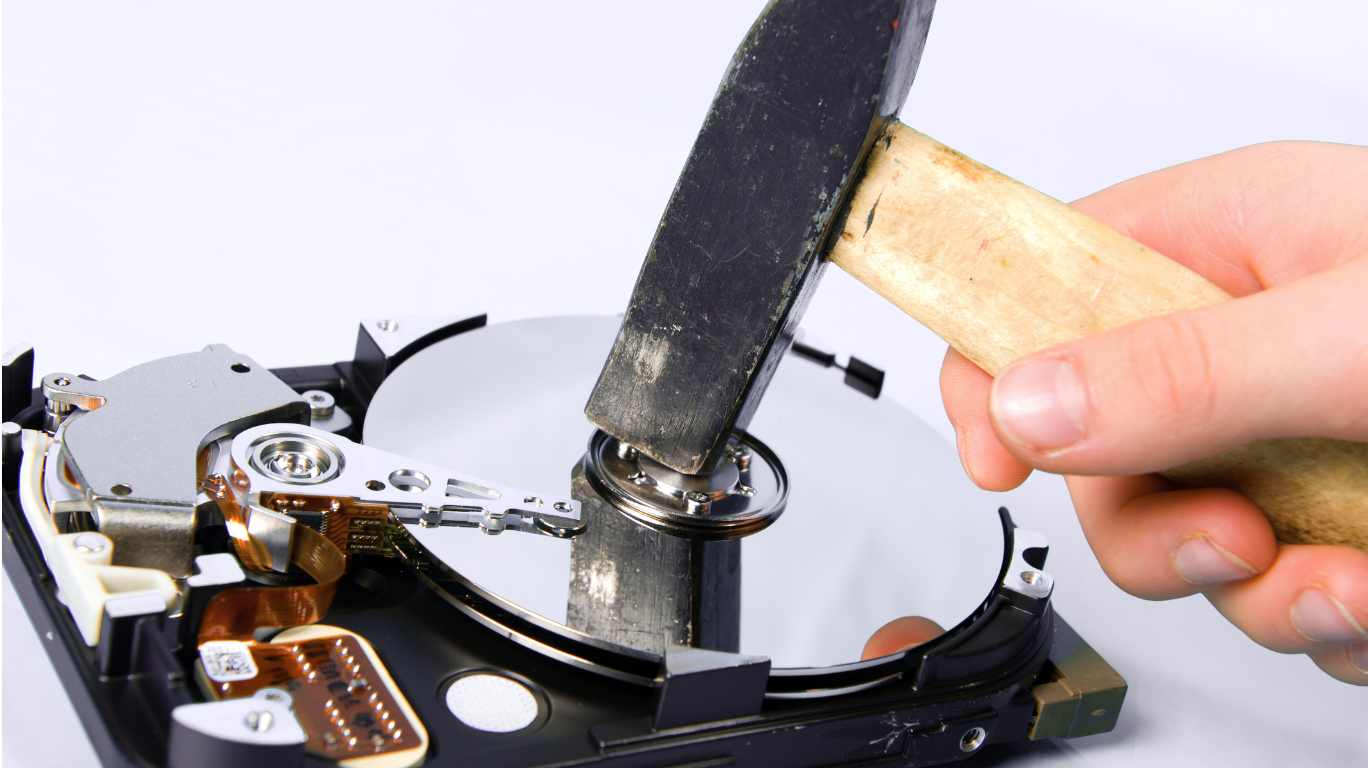

When you trade in, sell, or dispose of a phone, tablet or laptop, your device often contains a wealth of personal information — from photos and messages to passwords and banking apps. Leaving this data behind can put your privacy at risk, even if you think you’ve deleted everything. Ensuring your personal information is thoroughly protected is an essential step before device transfer.
Backing Up and Preparing Your Data
Before you wipe or transfer any device, make a complete backup of the information you want to keep.
Data can be backed up using:
- Cloud services such as iCloud (for iPhones) or Google Drive (for Android)
- Local backups to a computer or external storage
- Manufacturer tools like Samsung’s Smart Switch
A reliable backup ensures you can restore your data to a new device without loss. On Apple devices, backedup data includes contacts, photos and apps stored in iCloud, while Android’s Backup by Google One covers messages, app data, and settings.
Secure Erasure: Steps for Smartphones and Laptops
Merely deleting files or performing a standard factory reset may not fully protect your information — specialised recovery tools can sometimes retrieve deleted data. In fact, research has shown that a significant percentage of second‑hand devices still contain recoverable personal information long after owners think they’ve deleted it.
Smartphones (iOS and Android)
- Sign Out of Accounts:
Log out of iCloud, Google Accounts, Apple ID, email, and social apps to unbind the device from your services. - Remove SIM and Memory Cards:
These may contain contact data, messages, or saved media. - Encrypt Before Reset:
Most modern devices encrypt data automatically. Encryption before reset makes residual data unreadable. - Factory Reset:
Use the built‑in Erase All Content and Settings feature on iPhones or Factory Data Reset on Android. A full reset removes accounts, apps, settings and stored files. - Verify Reset:
If the device boots to the initial setup screen without your accounts linked, the erasure was successful.
Apple’s support documentation gives detailed steps for signing out of iCloud and performing a full reset.
Laptops and Computers
For laptops, it’s essential to perform a secure erase before trade‑in or sale:
- Backup Important Files:
Save documents, media and settings externally. - Sign Out of Accounts and Deauthorise Licences:
This includes email clients, cloud storage, and services like Microsoft Office or Adobe Creative Cloud. - Encrypt the Drive:
Tools like BitLocker on Windows or FileVault on macOS scramble data to make it unreadable without the encryption key. - Reset or Reinstall the OS:
Use Windows Reset or a clean OS reinstall after encryption to ensure data is wiped.
Commonly Overlooked Sensitive Information
Some personal information is easy to forget when preparing a device for sale or trade:
- Cloud App Credentials (e.g. banking, email, social networks)
- App‑specific data and cookies linked to subscriptions
- Cached passwords and saved forms
- Authentication apps or multi‑factor‑auth (MFA) tokens
Failing to unlink or deactivate these can leave access points open even after a reset.
Verifying Complete Data Erasure
After a reset, it’s prudent to:
- Power up the device and confirm it starts as a new device (setup screen without your accounts)
Check storage remnants — ensure no old files appear - If available, use tools to confirm that no accounts remain linked
Many trade‑in platforms, including SellUp, perform their own checks to verify data has been wiped before finalising payment, adding an extra layer of protection for sellers.
Why This Matters

Leaving personal information on a device you trade in or sell can expose it to data breaches or identity theft. Studies have found that a surprising number of devices resold online contain sensitive data long after owners believe they’ve wiped them. Taking thorough steps to back up, encrypt, erase and verify ensures your data stays your own.
Common Frequently Asked Questions
Are there additional steps for laptops vs smartphones?
Yes — laptops often require encryption tools like BitLocker or FileVault and OS reset processes, while smartphones use factory reset functions.
How can users verify that all data has been completely erased?
Devices should boot to the setup screen without linked accounts; storage should not show any of your files.
What types of sensitive information are commonly overlooked?
Cloud accounts, saved passwords, banking apps, MFA credentials and app cache data are often overlooked but critical to remove.
What is the correct process for backing up data before transferring a device?
Always create a full backup using cloud services or local storage before erasing your device.
Final Takeaway
Protecting your personal information during a device transfer is vital to your privacy and digital security. Steps like backing up data, encrypting storage, performing secure erasure, and verifying removal help ensure your sensitive information is not left behind. Using trusted resale platforms like SellUp, which provide instant quotes, verification checks and same‑day payment, adds confidence and convenience to the process.