Planning to sell or trade in your smartphone in Singapore? Before you hand it over, make sure your personal data is completely removed. A proper data wipe protects your privacy, prevents misuse, and increases buyer confidence when listing your phone on SellUp or other resale platforms.
This quick guide explains how to back up, reset, and wipe both iPhones and Android phones safely before selling.
1. Why You Should Wipe Your Phone Before Selling
Smartphones store sensitive data such as passwords, payment details, and personal photos. If you sell your device without properly erasing this data, the next user might still access your accounts.
In Singapore, privacy protection is also part of good resale hygiene. According to the Personal Data Protection Commission, users are responsible for safeguarding personal data before disposal or resale.
A clean phone does more than protect your information. It also does the following:
- Speeds up trade-in inspection
- Makes the device appear newer and well cared for
- Builds trust with buyers, especially on local marketplaces such as Carousell Singapore
2. Step-by-Step: How to Wipe an iPhone Before Selling
Step 1: Back Up Your Data
- Use iCloud or iTunes (Finder on Mac) to back up photos, contacts, and app data.
- Go to Settings > [your name] > iCloud > iCloud Backup > Back Up Now.
- You can also transfer data to your new iPhone with Quick Start during setup (Apple Backup Guide).
Step 2: Sign Out of iCloud and Apple ID
- Go to Settings > [your name] > Sign Out.
- Enter your password to disable Find My iPhone and unlink the device from your Apple ID.
Step 3: Remove SIM Card and Accessories
Take out your SIM card and any external storage or eSIM profiles.
Step 4: Erase All Content and Settings
- Go to Settings > General > Transfer or Reset iPhone > Erase All Content and Settings.
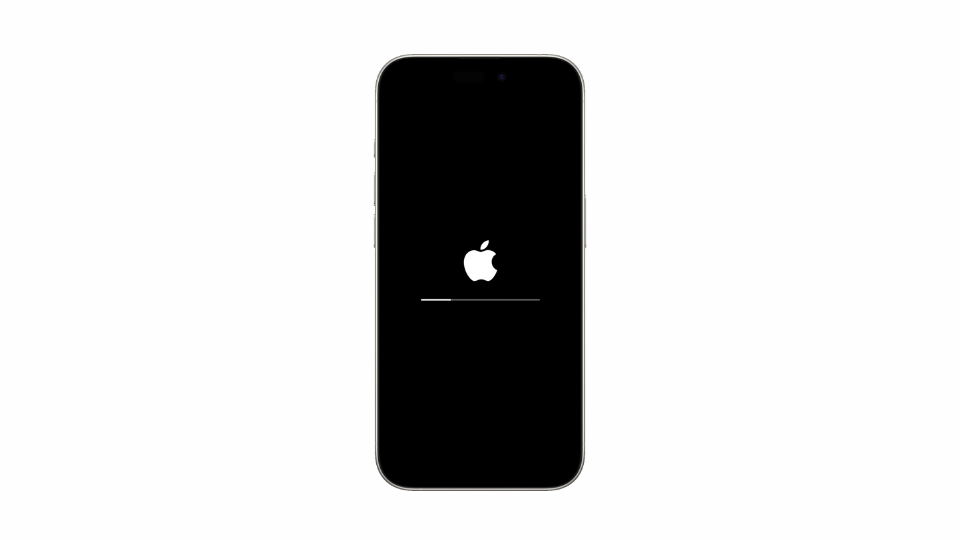
- Confirm and wait for the device to restart.
Apple’s guide on preparing your iPhone for sale details the full process.
Step 5: Clean and Inspect Physically
Wipe your device with a soft microfiber cloth and check for leftover residue. This helps during visual inspections at trade-in counters or pickup appointments.
3. Step-by-Step: How to Wipe an Android Phone Before Selling
Step 1: Back Up Your Data
- Go to Settings > Google > Backup.
- Turn on Backup by Google One to store photos, messages, and app data.
- For Samsung users, use Smart Switch to back up to a new device or SD card (Samsung Smart Switch Guide).
Step 2: Sign Out of Your Google Account
- Open Settings > Accounts and Backup > Manage Accounts > Google Account > Remove Account.
- This disconnects device protection and prevents Factory Reset Protection (FRP) lock during resale.
Step 3: Remove SIM and Memory Cards
Always take out any physical SIM or microSD cards before wiping.
Step 4: Factory Reset Your Android Phone
- Go to Settings > General Management > Reset > Factory Data Reset.
- Confirm to erase all apps, data, and settings.
- The process takes a few minutes depending on your storage size.
You can refer to Google’s factory reset instructions for detailed steps by brand.
Step 5: Optional: Secure Erase Using Overwrite Tools
For extra security, you can overwrite your data using Android’s built-in encryption or trusted erase tools. After resetting, load dummy data (like sample photos), then factory reset again. This makes data recovery almost impossible.
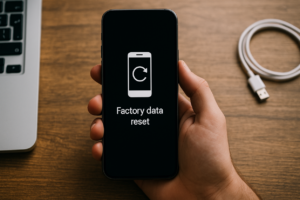
4. How to Verify Your Data Is Completely Gone
After resetting, restart your device. It should boot to the initial setup screen, asking for language, Wi-Fi, and sign-in credentials.
If it still recognises your account, repeat the reset. For iPhones, verify that Find My iPhone is disabled through your Apple ID device list. For Android, check that Find My Device shows the phone as offline.
5. Local Tips for Selling in Singapore
- Trade-in with confidence: Buyback shops such as SellUp confirm that the phone is properly reset before processing payment.
- Avoid public Wi-Fi backups: Always back up through mobile data or a secure home network.
- Meet in public locations: When selling directly through Carousell Singapore, meet near MRT stations or cafés with CCTV.
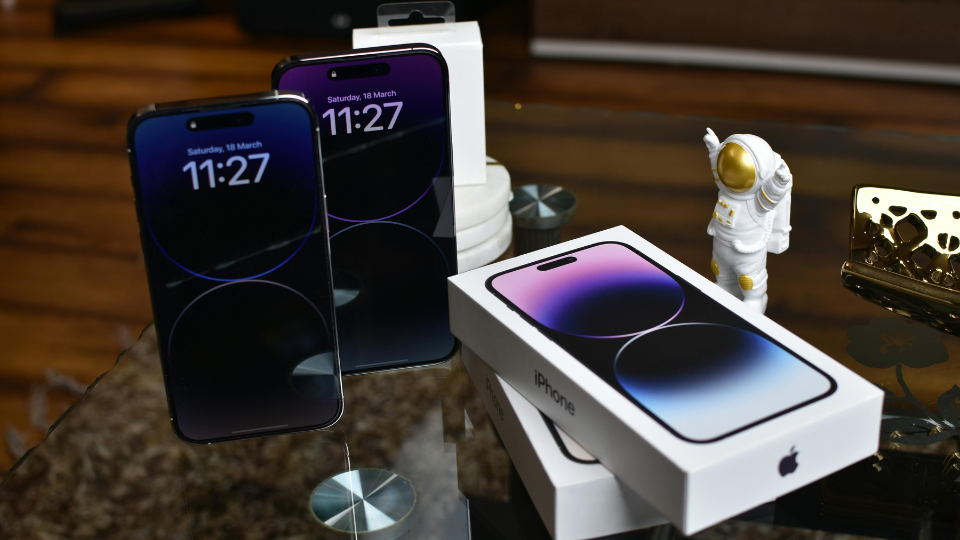
- Include accessories: Original box and charger increase resale value by up to $50 depending on model.
6. Quick Checklist Before You Sell
| Step | Action |
|---|---|
| 1 | Back up your data |
| 2 | Sign out of accounts (Apple ID or Google) |
| 3 | Remove SIM and memory cards |
| 4 | Perform full factory reset |
| 5 | Confirm reset worked |
| 6 | Clean and photograph device |
| 7 | Include charger, box, or receipts |
7. Final Takeaways
- Wiping your phone properly protects your privacy and speeds up resale.
- Always sign out of your accounts before factory resetting.
- Use verified buyback partners like SellUp to trade in securely for the best price.
- Visit the SellUp Blog weekly for guides on resale prices, device care, and sustainability tips in Singapore.
Selling your old phone safely not only earns you extra cash but also supports responsible tech recycling in Singapore.