
Are you struggling with a Mac that seems to have a mind of its own lately? Before you rush off to seek help from an Apple Genius, take a deep breath. You’ve got this! Many common Mac hiccups can be sorted out with some straightforward troubleshooting steps.
In fact, these easy-to-follow tips have helped me resolve about 90% of the Mac issues I’ve come across.
Here’s a tech guide that could save you a trip to the Apple Store. Let’s dive into some DIY fixes that can get your Mac back on track.
Reset the System Management Controller (SMC)
The SMC is like the central nervous system of your Mac. It manages a lot of the physical parts of your machine, like the cooling fans, power, and battery management. Here’s how to reset it:
For Desktops (iMac, Mac Pro)
- Unplug the power cord → wait for 15 seconds → reconnect it→ wait another 5 seconds before you hit the power button.
For Laptops with Non-Removable Batteries (Most Newer MacBooks)
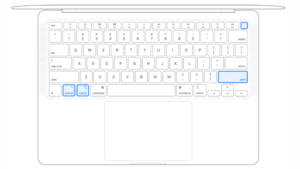
- Plug in the power cable → press the SHIFT + OPTION + CONTROL + Power Button all at once.
- Release them together and then turn on your Mac normally.
For Laptops with Removable Batteries (Some Older MacBooks)
- Disconnect the power → take out the battery → press the power button for 5 seconds.
- Put the battery back and power up your Mac.
Reset PRAM (Parameter RAM)
PRAM in a Mac stores important information like system settings. Resetting it can solve issues like problems with screen resolution, time zone settings, and startup disk preferences.
To reset,
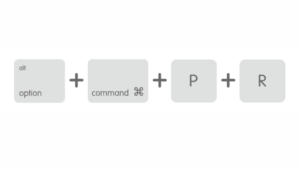
- Turn on your Mac and immediately press and hold the COMMAND + OPTION + P + R keys.
- Release after the second startup sound or when the Apple logo appears and disappears for the second time.
Run Disk Utility
If your Mac refuses to boot, your disk might be the culprit.
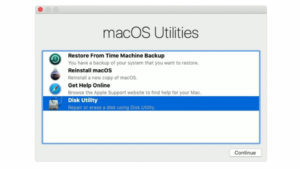
- Boot up your Mac in Recovery Mode by pressing Command + R.
- From the utility screen, select ‘Disk Utility’.
- Click ‘Verify Disk’ and if there’s an issue, click ‘Repair Disk’.
- If the disk is fine, try ‘Repair Permissions’.
Use Apple Diagnostics
This is like a health check-up for your Mac.
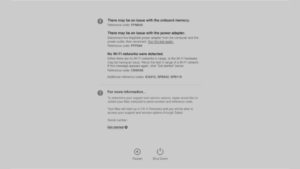
- Start your Mac and immediately press and hold the D key until you’re asked to pick a language.
- If it doesn’t work, try Option + D to run the diagnostics online.
- Follow the on-screen instructions to complete the test.
Remember, these are just first-aid tips for your Mac. If you’re still having trouble after these steps, it might be time to consult with an Apple Genius.
But often, these simple solutions can get you back up and running without the need for expert intervention. Happy troubleshooting!
Need Help?
Let us know if you have any queries on our service. WhatsApp or call us at 9336 0575 or email us at service@sellup.com.sg.