When trading in a device, few things cause more stress than the thought of losing years of WhatsApp chats, photos, and documents. The good news: backing up WhatsApp properly takes just a few minutes—if you know the right steps.
This guide breaks down the most common issues users face, explains how to back up WhatsApp on both iPhone and Android, and shares expert insights from SellUp’s experience handling thousands of trade-ins with instant quotes, verified dealers, and on-the-spot payment.
Why WhatsApp Backups Fail Before a Trade-In
Many customers arrive for trade-in without a complete WhatsApp backup—either the backup is outdated, incomplete, or hasn’t been set up at all.
The top reasons WhatsApp backups fail
- Insufficient iCloud/Google Drive storage.
- Slow or unstable Wi-Fi networks that time out mid-backup.
- Outdated WhatsApp versions that cannot sync to cloud storage correctly.
- Assuming auto-backup is already enabled (it often isn’t, or the schedule is too infrequent).
- Low battery mode temporarily pausing cloud uploads.
- The biggest misconception
Many customers believe that WhatsApp “auto-backs up”. While WhatsApp does offer scheduled backups, the last successful backup may be days—or even weeks—old, meaning the latest chats are missing when transferred.
Step-by-Step: How to Back Up WhatsApp on iPhone
These steps follow WhatsApp’s official guidance.
Prepare your iPhone for backup
- Ensure your Apple ID is signed in on the device.
- Connect to a stable Wi-Fi network.
- Confirm you have available iCloud storage.
- Update to the latest version of WhatsApp.
How to complete a manual iCloud backup
- Open WhatsApp.
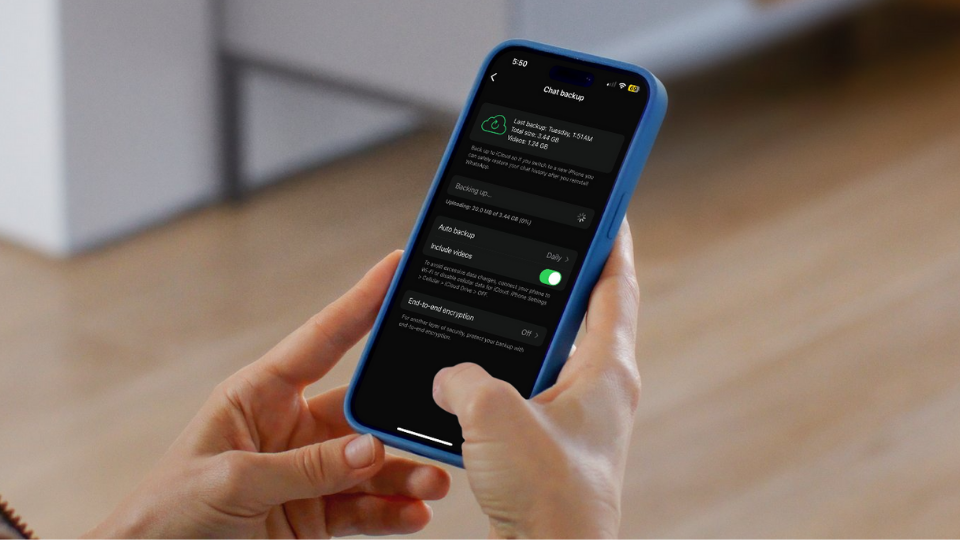
- Go to Settings → Chats → Chat Backup.
- Tap Back Up Now.
- For videos, toggle Include Videos (optional but recommended).
Enable automatic backups
- Under Auto Backup, choose Daily for the best protection.
How to verify your backup is complete
- The “Last Backup” timestamp should show today’s date.
- The backup size should match your expected chat history (photos + documents often increase the size).
Step-by-Step: How to Back Up WhatsApp on Android
Following WhatsApp’s official Google Drive backup method.
Prepare your Android device
- Sign in to your Google account.
- Ensure Google Drive has free storage.
- Connect to a stable Wi-Fi network.
- Update WhatsApp to the latest version.
How to complete a manual Google Drive backup
- Open WhatsApp.
- Go to Settings → Chats → Chat Backup.
- Tap Back Up to Google Account.
- Select Include Videos if needed.
- Wait until the upload completes—do not close WhatsApp.
Enable automatic backups
- Under Back up to Google Account, select Daily.
How to confirm the backup is successful
- Check the “Last Backup” timestamp.
- Open Google Drive → Backups → confirm WhatsApp listed with recent date.
Privacy & Security Tips Before You Trade-In
Protect your data during backup
- Only back up via your own private Wi-Fi.
- Never complete WhatsApp backups on public Wi-Fi—risk of interception is higher.
- Use a strong Apple ID/Google account password before uploading sensitive chats.
Common scenarios where data gets lost
- User reset their phone before confirming the cloud backup uploaded.
- Backup was completed using a different Apple ID/Google Account and can’t be restored later.
- User disabled end-to-end encrypted backups but forgot the backup password.
Expert insight
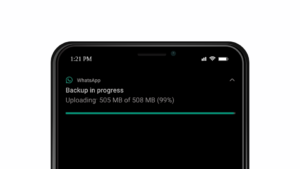
SellUp partners report that most data loss happens because the customer assumes the backup finished—when it actually failed midway. Always wait until the progress bar reaches 100%.
Before You Trade-In: Why SellUp Is the Best Place to Sell Your Device
When your backup is safely complete, you’re ready to trade-in. Choosing the right platform matters.
Why SellUp stands out
- Instant quotes based on real-time market prices.
- Largest network of verified buyback dealers in Singapore for higher buyback offers.
- Same-day, on-the-spot payment—no waiting, no uncertainty.
- Transparent price comparison so you always get the best deal.
- Prices updated daily, tracking Singapore’s fast-moving device market.
- Perfect for backup-ready customers
Once your WhatsApp data is safe, SellUp lets you complete the trade-in in minutes, not days.
Common Frequently Asked Questions
Do I need to back up WhatsApp before trading in my phone?
Yes. Without a cloud backup, your chat history, photos, and documents cannot be recovered after the device is wiped.
Why does my WhatsApp backup keep failing?
Most failures come from insufficient iCloud/Google Drive space, unstable Wi-Fi, outdated WhatsApp versions, or low battery mode stopping uploads.
How long does a WhatsApp backup take?
Anywhere from a few minutes to over 30 minutes depending on your Wi-Fi speed and the size of your chat history.
Does WhatsApp auto-backup?
Only if you’ve enabled it. Many users discover it was never switched on, or the backup frequency was too infrequent.
Will SellUp wipe my phone?
Yes—verified dealers perform secure data erasure. This is why completing your WhatsApp backup beforehand is crucial.
Final Takeaway
A WhatsApp backup is one of the smallest tasks in the trade-in process, yet it’s the step that protects the data you can’t replace—your conversations, your memories, and your documents. Take a few minutes to complete a manual backup, confirm it succeeded, and then trade in confidently with SellUp. With instant quotes, verified dealers, and same-day payment, SellUp ensures your trade-in experience is smooth, transparent, and worry-free.