Introduction
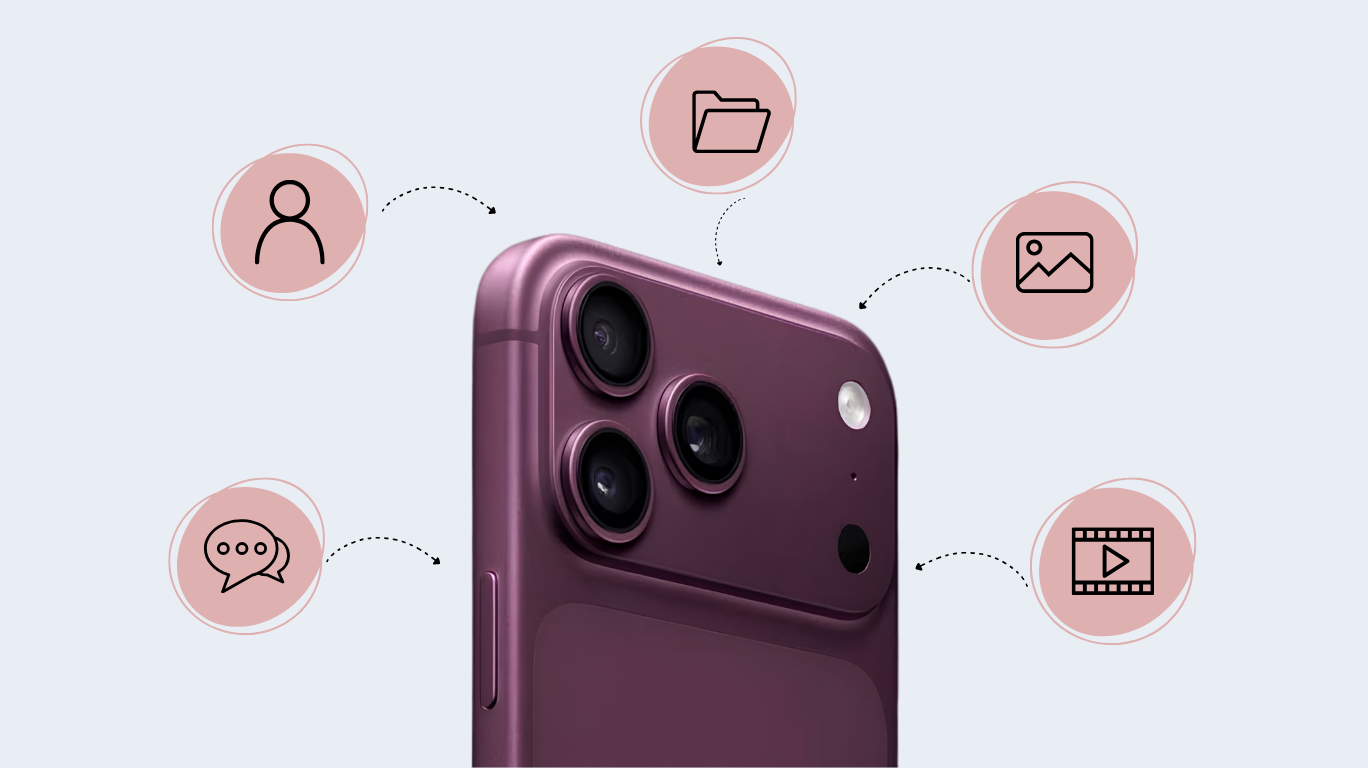
Unboxing a new iPhone is always exciting, however when you have to think about how to transfer over all your personal info—your contacts, images, and so on—it can be a lot to take in. No one wants to lose valuable memories or essential information in the process. Thankfully, there are solutions for transferring data quickly and safely. Both Apple itself and other third-party tools offer effective ways for you to get your info moved over painlessly.
In this guide, we will give tips for the three most effective methods of doing so: Quick Start, iCloud, and a wired connection.
Before You Start
Before moving anything, take a few minutes to prepare. To get ready for your upcoming transfer, complete these few preliminary steps:
- Always back up your data before proceeding with any transfer: Each time you move data, there’s a risk involved. In order to be able to protect your files, you need to open Settings and select [Your Name] > iCloud > iCloud backup, and then tap Back Up Now. You are completely covered making an encrypted backup on your computer.
This recommended option safely backs up sensitive data—such as saved passwords and Health app metrics—that regular iCloud backups leave behind.
- Update Your Old Device: Check your current iPhone to make sure it is updated to have the latest available iOS version to avoid potential software issues during the process.
- Charge Both Devices: Make sure both iPhones are connected to a power supply since heavy transfers take a lot of power.
- Note Your Passwords: Be sure to keep your Apple ID and password of your current device handy for the transfer.
The “Quick Start” (Device-to-Device)
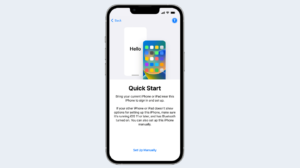
If you have both iPhones with you, Quick Start is the easiest method. It uses a direct peer-to-peer Wi-Fi connection.
Here’s how:
- Turn on the new iPhone and place it near the old one.
- Wait for the “Quick Start” card to appear on the old iPhone.
- Use the old iPhone to scan the animation on the new one.
- Enter the old passcode on the new device.
- Set up Face ID or Touch ID.
- Choose “Transfer from iPhone.”
Security and Tips
Security First: Your sensitive files are stored in encrypted format and transmitted securely between devices using a local network, ensuring data does not go on public internet.
Tips: Make sure that devices are placed close to each other and plugged into the power supply until the data transfer is completed.
Learn here what to do if you forgot your phone’s unlock password
iCloud Transfer (The Cloud Route)
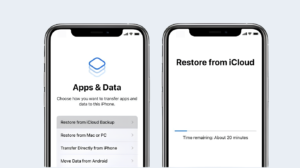
If you have sold or lost your old iPhone, iCloud Transfer is a good option to choose.
Here’s how:
- Turn your new iPhone on and go through the required initial setup until you see: Transfer Your Apps & Data.
- Tap on Restore from iCloud Backup.
- Enter your Apple ID information.
- Select your latest backup from the list to begin pulling down your files and settings.
Security & Practical Tips
End-to-End Security: Your data stays encrypted during transit and while stored on Apple’s servers. Plus, Apple’s mandatory Two-Factor Authentication (2FA) ensures only you can access your backup code.
Network Requirement: Keep in mind that downloading everything over the cloud demands a reliable Wi-Fi network and can take a while if you have a lot of media or a slower internet connection.
Wired Transfer (Mac or PC)
For the fastest and most reliable transfer, especially with large amounts of data, use a wired connection. Here’s how:
On a Mac (through Finder):
- Connect your old iPhone to your Mac with the help of a cable, launch Finder, and give Trust permission.
- Select your device in the Finder sidebar, move to the General tab and click on Backups.
- Make sure to tick Encrypt local backup and create a password, otherwise you won’t be able to successfully transfer your health data, passwords, and Wi-Fi information.
- Press Back Up Now button. Once the process is over, disconnect your old iPhone, connect to a new one, choose Restore Backup option, and select the encrypted file with backup.
On Windows (using Apple Devices application or iTunes):
- Connect your old iPhone to your PC and launch the Apple Devices app (or iTunes).
- Click your phone icon, check Encrypt local backup, set a password, and click Back Up Now.
- Swap to the new iPhone and click Restore Backup.
Security Advantage
Local, encrypted computer backups offer the highest level of privacy. Because your files transfer locally through a cable without ever hitting cloud servers, you retain total control over your data.
Special Consideration: Transferring from Android
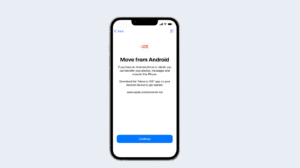
Moving over from Android? Apple makes the jump seamless with its Move to iOS app.
- Download the App on Your Android Phone: Download and install Move to iOS app through Google Play Store on your Android device.
- Start iPhone Setup: Switch on your new iPhone and follow through the setup until you get to the “Transfer Your Data & Apps”
- Create a Code: Select From Android on your iPhone screen to generate a unique 6 or 10-digit code.
- Link Devices: Enter that code on Move to iOS app on Android device to connect both devices.
- Choose Data: Choose what information you want to transfer from the other mobile, such as phone numbers, messages, images, videos, and preferences, and touch Continue.
- Stay Close: The two phones should stay next to each other and be switched on till the completion of the iPhone transfer bar.
Post-Transfer Checklist
Complete these tasks before storing your old smartphone.
- To begin, verify that all your information has transferred safely by looking at Photos, Contacts, and Messages on your new iPhone.
- The next step is to make sure that your security services are all right. For instance, if you have been using apps such as Google Authenticator or Microsoft Authenticator, don’t forget to import any 2-Factor Authentication codes by exporting them, as these tools cannot be backed up due to security concerns.
- Also, disconnect your Apple Watch from your old iPhone to create a backup of it and pair it with your new mobile phone.
- The last step is to wipe all the information from your old smartphone. Log out of your Apple ID and select Settings-> General -> Transfer or Reset iPhone -> Erase All Content and Settings before selling or giving the phone away.
Quick Recap
No matter if you use the Quick Start option, iCloud restore, or just connect your phone to computer, all the data will be encrypted. Android users can use Move to iOS app for an easy data transition. After the verification of files and relinking of Apple Watch, and cleaning the old phone, you’ll be ready to go. Enjoy your new iPhone!
Discover 5 easy steps to prepare your iPad for resale without losing data